What Is a Computer Virus and How Does It Spread?
By Zorium Daily News Desk
Imagine you catch a cold. You feel fine in the morning, but by the evening your nose is blocked and your head hurts. The next day, your friend catches it too.
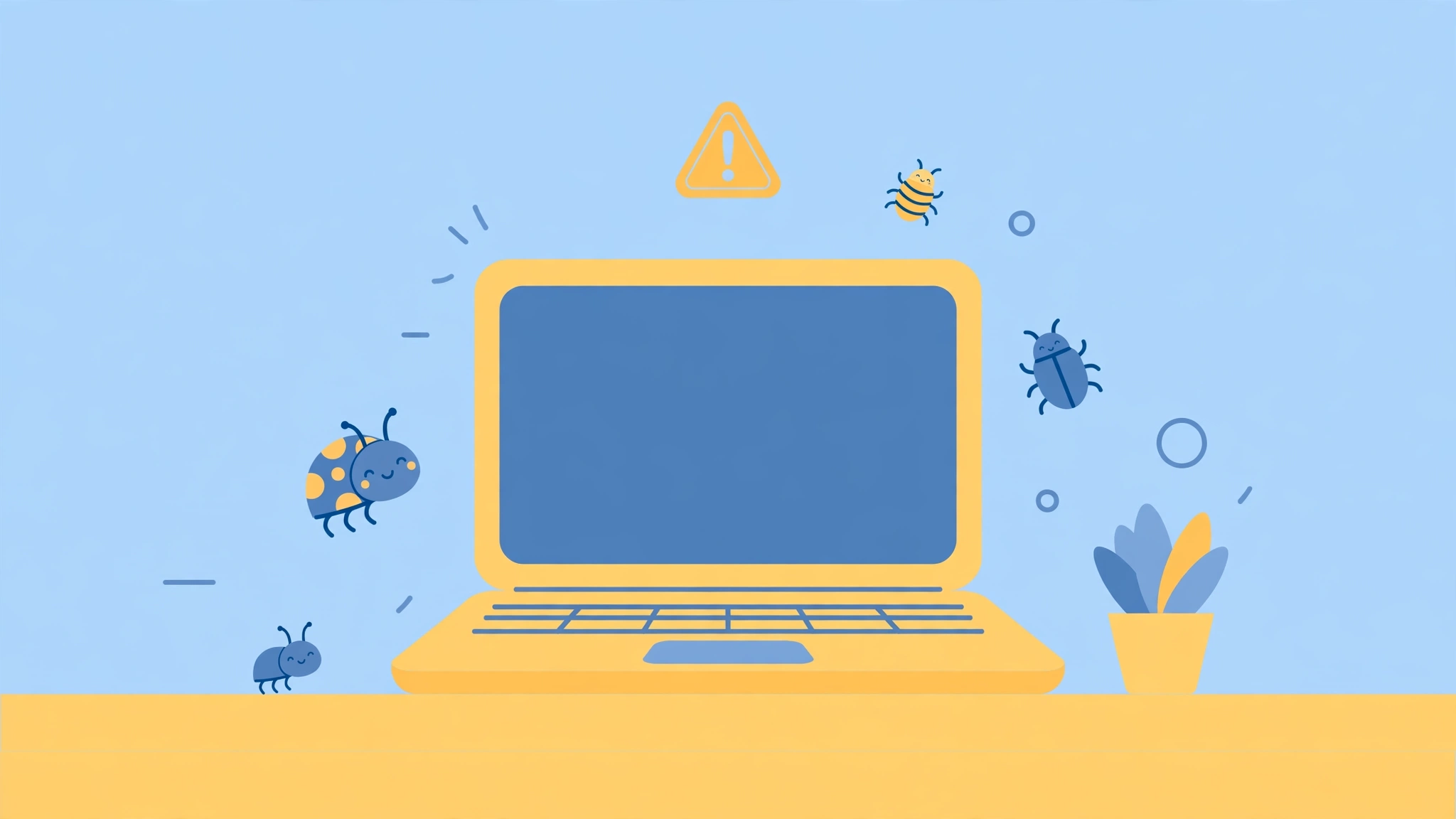
A computer virus works in a very similar way. It is a small piece of harmful code that hides inside a normal file. When you open that file, it wakes up, makes copies of itself, and can move to other computers.
Most of us use a computer or a phone every day. We send emails, download apps, click links, and share files. All of these normal actions can, in rare cases, let a virus in. But once you know how it works, you can stay safe.
SUMMARY OF THIS ARTICLE
- A computer virus is a harmful piece of code that hides inside a normal file and makes copies of itself when the file is opened.
- Viruses are one type of harmful software, called malware. They are different from worms, which spread on their own, and trojans, which pretend to be safe programs.
- Viruses spread through email attachments, unsafe downloads, USB sticks, fake links, and shared networks.
- A virus can slow your computer down, delete or lock your files, show endless pop-ups, and steal passwords.
- You can stay safe with simple habits: keep your software updated, use antivirus software, think before you click, and back up your important files.
What Is a Computer Virus, in Simple Words?
A computer virus is a type of harmful software. Software is the set of instructions that tells a computer what to do. A virus is bad software, written to harm your computer or steal your information.
The word “virus” comes from real life. A real virus is a tiny germ that makes people sick, and it needs a living body to grow and spread. A computer virus is like that. It needs a host, a normal file or program it can hide inside.
The virus attaches itself to that file, like a sticker on a book. When you open the file, the virus runs and makes copies of itself in other files.
A virus cannot harm you just by sitting on your computer. It needs you to open the infected file. That is why viruses try so hard to trick you into clicking. They hide in things that look safe, like a photo, a song, or a game.
The word “malware” is short for “malicious software.” Malicious is a hard word. It just means “meant to do harm.” A virus is one kind of malware.
A Short History of the First Computer Viruses
Computer viruses have been around for more than fifty years, since the days when computers were huge machines in offices and universities.
The first virus-like program appeared in 1971. It was called Creeper, made by a man named Bob Thomas. It moved from one computer to another on an early network called ARPANET, one of the first versions of the internet. It did not destroy files. It simply showed a message: “I’M THE CREEPER: CATCH ME IF YOU CAN.”
In 1982, a 15-year-old boy named Rich Skrenta made a virus called Elk Cloner. It spread on Apple II computers, hiding on floppy disks. A floppy disk was a small square disk people used to store and share files, a bit like a USB stick today. When someone put an infected disk into their computer, the virus copied itself onto that computer. Every fiftieth time the computer started, it showed a short poem.
In 1986, two brothers in Pakistan, Basit and Amjad Farooq Alvi, made a virus called Brain. It is often called the first virus made for the IBM PC. Brain also spread through floppy disks. Soon, people in many countries found it on their computers. It slowed them down.
Then, in 1988, came the Morris worm, made by a student named Robert Morris. It spread across the early internet very fast and slowed down or stopped thousands of computers at universities and offices. After this, companies and governments started to take computer safety much more seriously.
In the late 1990s and the year 2000, viruses moved to email. Two famous ones were Melissa in 1999 and ILOVEYOU in 2000. Melissa arrived as an email attachment. When someone opened it, the virus sent itself to people in that person’s address book. ILOVEYOU arrived with the subject “ILOVEYOU” and a file attached. Many people opened it because it looked like a love letter. It spread to millions of computers around the world.
The Main Types: Virus, Worm, and Trojan
People often use the word “virus” for all harmful software. But it helps to know the three main types.
A virus
A virus is the classic type. It needs a host file, and it needs you to open that file. Think of it like a seed, which cannot grow on its own. Once you open the infected file, the virus runs. It makes copies of itself and attaches them to other files. If you share one of those files with a friend, the virus travels with it.
A worm
A worm is like a virus, but it does not need a host file, and it does not need you to open anything. It can move on its own. It looks for weak spots in a network and crawls through them to the next computer. A worm spreads fast because it does not wait for a person to click. It can copy itself again and again, across a network, in minutes. Worms often slow a network down because they make so many copies that the network becomes crowded.
A trojan
A trojan is named after the Trojan Horse, a famous story from ancient Greece. Soldiers hid inside a large wooden horse, which was given as a gift. The people of the city pulled it inside their walls, thinking it was safe. At night, the soldiers came out and opened the gates. A trojan works the same way. It pretends to be a safe program, like a free game. You download it, thinking it will help you. But hidden inside is harmful code. Once you run it, the trojan opens a door for the attacker. The key difference is this. A virus copies itself. A worm copies itself and moves on its own. A trojan does not copy itself at all. It tricks you into letting it in.
Other names you may hear
Spyware watches what you do and sends that information to someone else. Adware shows you endless adverts and pop-ups. Ransomware locks your files and asks you to pay money to get them back. You should never pay. All of these are types of malware, and they share one goal: to harm your computer or steal from you.
How Does a Computer Virus Spread?
A virus spreads in many ways, but almost all of them use one simple trick: they get you to open something, click something, or plug something in.
Email attachments
Email is still the most common way for a virus to spread. An email arrives with a file attached, which may look like a document, a photo, or a bill. The email may say something urgent, like “Open this now” or “You have won a prize.” If you open the attachment, the virus can run. Some of these emails pretend to be from a real company, like a bank or a delivery service. This trick is called phishing. The email looks real, but the address it comes from is fake. Always check the sender’s address. A virus can also spread through your own address book. If a virus infects your computer, it may send itself to all your contacts. Your friends get an email from you. They trust you, so they open it.
Downloads from the internet
A download is when your computer saves a file from the internet. Most downloads are safe, but some are not. A virus can hide in a free game, a free song, a free film, or a free app. It can also hide in a program that promises to speed up your computer for free. If it sounds too good to be true, it often is. Only download software from the official website of the maker, or from the official app store. If a website offers a paid program for free, that is a warning sign.
USB sticks and other shared drives
A USB stick is a small device that you plug into a computer to carry files. It is very handy, but it is also a very easy way for a virus to travel. If you plug an infected USB stick into your computer, the virus can copy itself onto your computer. Then, if you plug your own clean stick into that same computer, the virus may copy itself onto your stick too. Do not plug in a USB stick that you found, or one that a stranger gave you. Only use sticks from people you trust, and scan them first.
Fake links and infected websites
A link is a piece of text or a button that takes you to another page when you click it. Most links are safe. But some lead to infected websites, or to pages that try to download a virus onto your computer without you noticing. These fake links appear in emails, text messages, social media posts, and adverts. They often promise something exciting: a shocking video, a free gift, or a big discount. A QR code can also carry a bad link. A QR code is a square pattern that your phone camera reads to open a web page. You cannot read it with your eyes, so you cannot tell where it leads. Always read the web address preview before you tap it. An infected website can also harm you even if you do not click anything. Some websites have hidden code that tries to use a weak spot in your browser, so keeping your browser updated matters.
Networks and shared connections
A virus can also spread across a network, a group of computers connected to each other, like the computers in an office or a school. If one computer on the network is infected, a worm can move to the others. Public Wi-Fi can also be risky. Wi-Fi is the wireless internet you use at home, in cafes, and in airports. A public network is one that anyone can join, and an attacker on it may be able to see what you are doing. It is fine for simple things, like reading the news. But avoid opening bank apps or typing private passwords on a public network you do not trust. Even Bluetooth can share files between devices, and a harmful file can travel that way too. Only accept files from people you trust.
Messages and social media
Viruses also travel through chat apps and social media. A message arrives from a friend, with a link or a file. The friend may not have sent it at all. A virus on their computer may have sent it for them. If you click the link, the virus may try to infect your computer too. If you are not sure a message is real, ask your friend on a different app, or by phone, whether they really sent it.
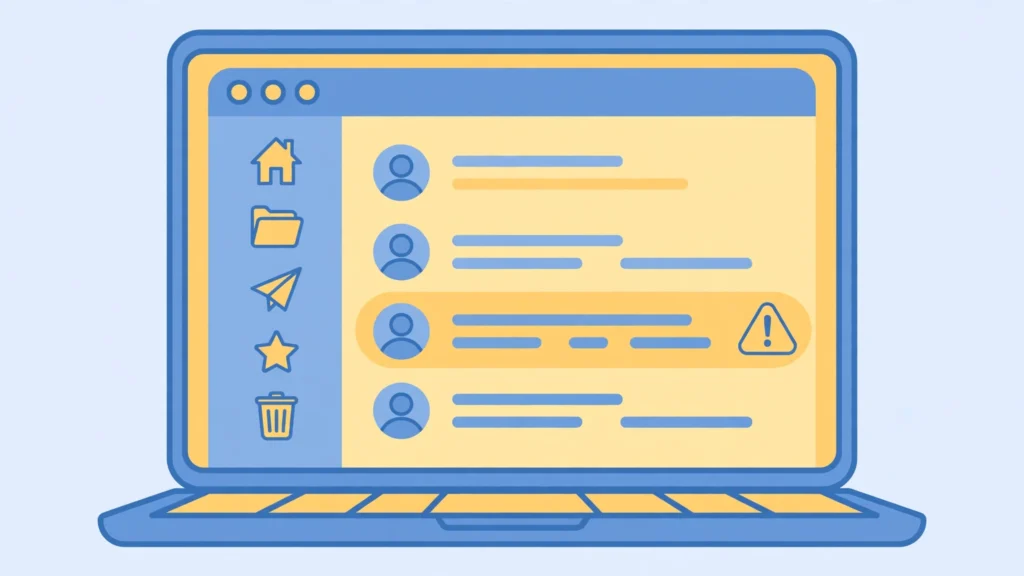
What Does a Virus Do to Your Computer?
First, a virus can slow your computer down. It runs in the background, using your computer’s power. Your computer takes longer to start, and programs take longer to open.
Second, a virus can change or damage your files. It can delete a file or make a photo impossible to open. If you have no backup, a damaged file may be lost for good.
Third, a virus can steal your information. It can record the keys you press, which is called keylogging, and learn your passwords. The attacker can then use that information to log into your accounts.
Fourth, a virus can show you endless adverts and pop-ups. A pop-up is a small window that appears on your screen. A virus may fill your screen with pop-ups, even when you are not browsing the internet. Some pretend to be warnings from your computer. If you click, you may download even more harmful software.
Finally, a virus can lock your files and ask for money. This is ransomware. Your files are locked, and a message asks you to pay to get them back. Do not pay. A backup is the best protection against this.
Warning Signs Your Computer May Be Infected
A virus does not always show itself clearly. But if you see several warning signs at the same time, it is time to act.
Your computer suddenly becomes much slower. Programs that used to open in a second now take a long time. This can happen for other reasons too, like a full hard drive. But if the slowness came on suddenly, a virus is one possible cause. A virus can also fill up your phone storage with its own copies.
Your computer crashes or freezes often. A crash means a program stops working suddenly. A freeze means the screen stops moving. But if your computer crashes many times a day, something may be wrong.
You see pop-ups all the time. Adverts appear even when you are not on the internet. New windows open by themselves.
Your browser changes on its own. Your home page or search engine has changed. New toolbars appear that you did not install.
Your antivirus software stops working. It turns itself off, or it will not open. Some viruses turn off your protection first.
Your friends get strange messages from you. They got a weird email from your account, with a link attached. You did not send it. A virus may be using your account to spread itself.
Your files go missing or change. Documents will not open. Photos look broken. A virus may have changed or deleted those files. Your computer may also restart by itself.
If you see several of these signs together, do not panic. Stay calm and follow the steps in the next section.
How to Remove a Computer Virus
If you think your computer has a virus, act quickly, but act calmly.
Step 1: Disconnect from the internet. Unplug the network cable, or turn off Wi-Fi. This stops the virus from sending your information away.
Step 2: Restart your computer in safe mode, if you know how. Safe mode starts it with only the basic programs it needs, and it stops most viruses from running. If you are not sure how, skip this step.
Step 3: Run a full scan with your antivirus software. Choose a full scan, not a quick scan. It checks every file on your computer. It takes longer, often an hour or more. Let it finish.
Step 4: Follow what the antivirus tells you. When the scan finds a harmful file, it will offer to clean it, delete it, or quarantine it. Quarantine means to lock the file away where it cannot run.
Step 5: Delete temporary files and clear your browser. Temporary files are small files your computer saves while you work, and a virus can hide in them. Also clear your browser history and cache.
Step 6: Update everything. After the virus is gone, update your operating system, your browser, and your apps. Updates fix the weak spots the virus used to get in.
Step 7: Restart your computer normally. Turn your internet back on. Check whether the warning signs are gone. If all looks normal, run one more full scan the next day.
Step 8: Change your important passwords. If the virus may have stolen your passwords, change them now. Start with your email, because your email can be used to reset many other accounts. Then change your bank password and your other account passwords. Use a different password for each account. If a service offers two-step verification, turn it on.
Step 9: Check your backup. If some files were damaged or deleted, restore them from your backup, a safety copy kept somewhere else, like an external drive or a cloud service.
If the virus will not go away, ask for help. Ask a trusted computer repair shop, or a friend who knows computers well. Do not download random “virus removal” tools from the internet. Many of them are fake.
How to Stay Safe: Simple Habits That Work
Removing a virus is hard work. Avoiding one is much easier.
Keep your software updated. Your operating system, your browser, and your apps all get updates. Many of those updates fix weak spots that viruses use. Turn on automatic updates where you can. An old, unpatched program is like a door with a broken lock.
Use antivirus software and keep it turned on. Most computers come with some protection built in, and it works well if you keep it updated. Do not turn it off to make your computer faster. Run a full scan at least once a month.
Think before you click. This is the most important habit of all. Most viruses need you to click something. So pause first. Ask yourself: did I expect this message? Does the sender’s address look right? Does the link make sense? If anything feels wrong, do not click. Delete the message.
Download only from trusted places. Get apps from the official app store on your phone, or from the maker’s official website. Do not download free versions of paid programs from strange websites. If a website says, “Your computer is slow! Download this cleaner now!” close the page. It is almost always a trick.
Be careful with USB sticks. Do not plug in one you found on the street, or one a stranger gave you. Only use sticks from people you trust, and scan them first.
Use strong passwords and two-step verification. A strong password is long, with a mix of letters, numbers, and symbols. Do not use the same password for every account. Two-step verification adds a second check, usually a code sent to your phone.
Back up your important files. Backing up means making a second copy and keeping it somewhere safe, like an external hard drive or a cloud service. Back up your photos and documents. Do it regularly. Keep the backup drive unplugged when you are not using it, so a virus cannot reach it too.
Be careful on public Wi-Fi. Public networks in cafes, airports, and hotels are handy, but they are less safe than your home network. Do not open bank apps or type private passwords on public Wi-Fi.
Teach your family too. Tell children and older relatives not to open attachments they did not expect, and to ask you before they download anything new.
Finally, stay calm and curious, not afraid. The internet is a wonderful place. It helps you learn, work, play, and stay in touch with people you love. A virus is a real risk, but it is a risk you can manage.
Frequently Asked Questions
1. Can a computer virus spread to my phone?
Yes, it can, but it is less common than on a computer. Phones can get harmful software too, often through fake apps, bad links, or unsafe downloads. Keep your phone updated, and download apps only from the official store.
2. Can I get a virus just by visiting a website?
It is possible, but it is rare on well-known, trusted websites. Most viruses need you to download something or click something. A few harmful websites use weak spots in old browsers. That is why keeping your browser updated is so important.
3. Can a virus spread through a photo or a video?
A normal photo or video file is usually safe. But a virus can hide inside a file that looks like a photo or a video. The file name may end in .jpg or .mp4, but the file itself may be something else. Only open files from people you trust. If a photo arrives in a strange email, do not open it.
4. Does my computer have a virus if it is slow?
Not always. A slow computer can have many causes. It may have too many programs running at once, or a full hard drive. But if your computer became slow all of a sudden, and you also see pop-ups or crashes, a virus is one possible cause. Run a full antivirus scan to check.
5. Should I pay if ransomware locks my files?
No, you should not pay. Paying does not always bring your files back. Instead, disconnect from the internet, run an antivirus scan, and restore your files from a backup. If you have no backup, ask a trusted expert for help.
6. Is free antivirus software good enough?
The protection built into most modern computers, and well-known free antivirus programs, can be good enough for everyday use, as long as you keep them updated and turned on. Do not download it from pop-up adverts. Those are often fake.
More from Zorium Daily
- Learn how Wi-Fi reaches your phone, and when public networks are risky.
- Find out what a QR code is, and why you should check the link preview before you tap.
- Read how Bluetooth connects your devices, and how to pair safely.
- Discover what happens when you delete a file, and why it is not always gone for good.