
What Happens When You Delete a File? Is It Really Gone?
SUMMARY OF THIS ARTICLE
- When you delete a file, it first goes to a trash bin on your device, and you can still get it back.
- When you empty the trash bin, the file name is removed, but the file data often stays on the device for a while.
- New data can write over the old data, and once that happens, the old file is much harder to get back.
- Phones keep deleted photos for about 30 days, and cloud apps have their own trash bins too.
- If you want a file truly gone, you need special erase steps, and you must back up first.
Introduction: The Button Feels Final, But Is It?
You click delete. The photo is gone. The file is gone. The screen looks clean. It feels final. But is it really gone?
This is a question many people ask. It is a good question. The answer is not a simple yes or no. It depends on what you deleted, where you deleted it, and what you did next.
In this article, we will explain what happens when you delete a file. We will use simple words. We will use short sentences. A 10-year-old can read this and understand it. If we use a hard word, we will explain it right away in plain words.
Step One: The Trash Bin
When you delete a file on a computer, it does not vanish at once. It goes to a trash bin. On a Windows computer, this is called the Recycle Bin. On a Mac, it is called Trash. On a phone, photos go to a folder called Recently Deleted. The name is different, but the idea is the same.
Think of it like this. You take a paper from your desk. You put it in a waste bin in your room. The paper is still there. You can take it back out. You have not thrown it out of the house yet.
The trash bin works the same way. The file is still on your device. It is just in a new place. You can open the trash bin. You can find the file. You can click restore. The file goes back to where it was. It is that easy.
This is good news if you delete by mistake. Do not panic. Check the trash bin first. The file is often right there, safe and whole.
Step Two: You Empty the Trash Bin
Now you empty the trash bin. You click “Empty Trash” or “Delete Forever.” Now what happens? Is the file gone now?
Not quite. This is the part that surprises most people.
When you empty the trash bin, the device does not erase the file data at once. It erases something else. It erases the pointer. A pointer is like a sign or a label. It tells the device where the file lives. It is like the card in a library that tells you where a book sits on a shelf.
Imagine a library. Each book has a card in a big box. The card says the book name and the shelf number. If you throw away the card, the book is still on the shelf. You just cannot find it with the card box any more. You would have to walk along every shelf and look at every book. That is hard, but the book is still there.
Your device works in a similar way. When you empty the trash bin, it throws away the card. It says, “This space is now free.” It does not wipe the shelf clean at once. The file data, the photos, the words, the music, stays on the device until something else needs that space.
Step Three: New Data Writes Over Old Data
So when does the old file truly go away? It goes away when new data writes over it. Overwrite is a simple word. It means new data takes the old data’s place. It writes on top of it. Like writing a new note on top of an old note, until the old note cannot be read any more.
Let us use the library again. The book is still on the shelf, but its card is gone. Now the library needs space for new books. It takes the old book off the shelf and puts a new book there. Now the old book is truly gone. You cannot get it back from that shelf.
Your device does the same thing. When you save a new photo, download a new app, or copy a new file, the device looks for free space. It may pick the space where your old deleted file sits. It writes the new data there. Bit by bit, the old data is lost. A bit is just a tiny piece of computer data, a 0 or a 1. When enough bits are changed, the old file cannot be put back together.
This is why time matters. If you delete a file and then use the device a lot, the old data may be overwritten fast. If you stop using the device right away, the old data may stay for a long time. It may stay for days, weeks, or even months. No one can promise how long. It depends on how much free space you have and how much new data you save.
This is also why recovery tools can work. A recovery tool is a program that looks for lost files. It does not use the card box. It walks the shelves. It looks for file data that is still there, even though the pointer is gone. If the data has not been overwritten yet, the tool can often put the file back together. If much of the data has been overwritten, the file may come back broken. A photo may show only half. A document may miss pages. Or the tool may find nothing at all.
Recovery tools are not magic. They cannot bring back data that is truly overwritten. They can only find what is still there. And they work best when you act fast and do not save much new data first.
Hard Drives and SSDs: Why They Are Different
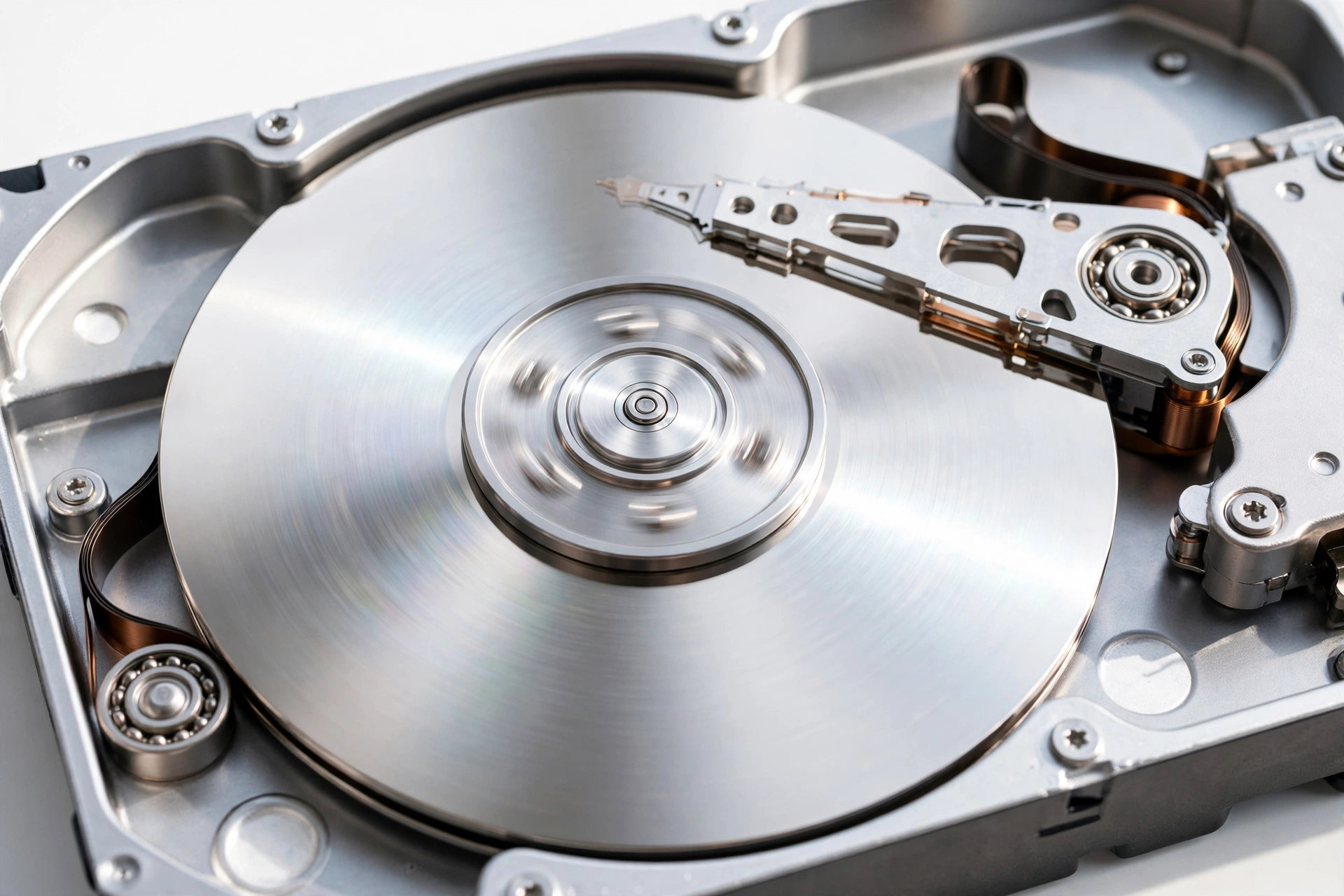
Not all storage works the same way. There are two main types. One is called a hard drive, or HDD for short. The other is called an SSD, which stands for solid-state drive. A solid-state drive has no moving parts inside. A hard drive has a spinning disk inside, like a small record player.
A hard drive is like a shelf with books. When you delete a file, the card is thrown away, but the book stays until a new book takes its place. This can take a long time. That is why files on old hard drives can often be found long after they were deleted.
An SSD works in a different way. An SSD uses tiny memory chips. It has a special clean-up job called TRIM. TRIM is just a name for a command. It tells the SSD, “This data is no longer needed. You can clean it up.” When you delete a file on a modern SSD, TRIM often erases the data quite fast. It does not wait for new data to take its place. It cleans the space on its own, so the SSD stays fast and ready.
This means recovery is much harder on an SSD. On a hard drive, you may have weeks to get a file back. On an SSD, you may have only minutes or hours. Sometimes you have almost no time at all. This is not a fault. It is how SSDs are made to work well.
Phones: Recently Deleted and 30 Days
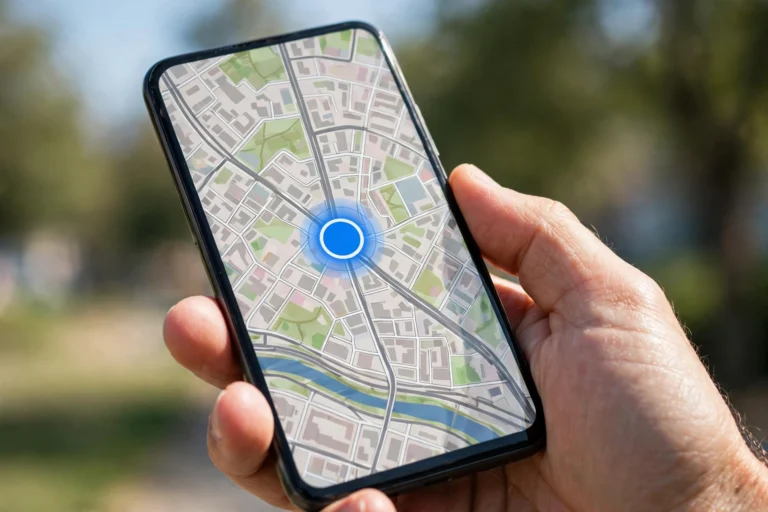
Phones have their own rules. When you delete a photo on an iPhone or an Android phone, it does not vanish at once. It goes to a folder. On an iPhone, it is called Recently Deleted. On many Android phones, it is called Trash or Bin in the Photos app.
The photo stays there for about 30 days. During those 30 days, you can open the folder and restore the photo with one tap. After 30 days, the phone removes it on its own. It does not ask you again. It just cleans up.
But remember what we learned above. Removing it from Recently Deleted does not mean the data is wiped at once. On a phone, which uses SSD-type storage, TRIM may clean it fast. On some phones, it may take longer. You cannot be sure. Do not count on getting it back after 30 days.
Phones also have other trash bins. Your Files app may have its own trash bin. Your email app has a trash folder. Your notes app may keep deleted notes for a while. Each app has its own rules. If you delete something, check each place. Do not check only one place and give up.
Also, many phones back up photos to the cloud. The cloud is just a name for computers far away, run by a company, that store your files on the internet. If your phone backs up to Google Photos, iCloud, or a similar service, a deleted photo may still be in the cloud. It may be in the cloud trash bin too. Check there as well. The cloud trash bin also has a time limit, often 30 days. After that, it is cleaned up too.
Cloud, Backups, and Copies: The File May Live in Many Places
This is a big point. A file is rarely in only one place. It may live in many places at once. When you delete it from one place, it may still live in another place.
Think about a photo you sent to a friend. You delete it from your phone. But your friend still has it in their chat. You sent it by email. The email still has it as an attachment. An attachment is just a file stuck to an email. You shared it in a group. The group still has it.
Backups make more copies. A backup is a safety copy of your files. Many phones and computers make backups on their own. They copy your photos, contacts, and files to the cloud or to an external drive. An external drive is a small box you plug in to store extra files. If you delete a file from your phone, the backup copy may still exist. That is good if you want the file back. It is bad if you want the file truly gone.
Cloud apps also keep old versions. A version is an older copy of a file. If you edit a document in Google Drive or a similar app, the app may keep old versions for a while. Deleting the newest version does not always delete the old versions. You must check the version history and the trash bin in that app too.
So the question “Is it really gone?” has a second part. Gone from where? Gone from your phone is not the same as gone from everywhere. To know if a file is truly gone, you must think about every place it could live. Your device, your trash bins, your cloud, your backups, your emails, and other people’s devices.

How to Truly Erase a File
Sometimes you do want a file truly gone. Maybe it has private photos. Maybe it has bank details. Maybe it is work you must not share. How do you make sure it is gone?
First, back up first. Back up means make a safety copy of the files you want to keep. Do this before you erase anything. Once a file is truly erased, you cannot get it back. So check twice. Keep what you need. Erase only what you are sure you do not need.
Second, delete the file from every place. Delete it from your device. Empty the trash bin. Delete it from the cloud trash bin. Delete old versions in cloud apps. Delete it from backups if you do not want it in the backup either. This step takes time, but it is needed. If you miss one place, the file may still live there.
Third, use a secure erase tool for very private files. A secure erase tool writes random data over the old data, again and again. Random data means data with no pattern, just noise. It writes over the space many times. This makes the old data very hard to find. On a hard drive, this works well. On an SSD, it is trickier, because the SSD moves data around on its own. For an SSD, the maker’s own secure erase tool is often the best choice. Do not use random tools from the internet without checking that they are safe and well known. A bad tool can harm your device.
Fourth, for a whole device, use a full format or a factory reset. Format is a word that means wipe a drive clean and set it up fresh. A quick format only removes the pointers, like emptying the trash bin. A full format writes over the data too. It takes longer, but it is much safer. A factory reset puts a phone or tablet back to how it was when it was new. On a modern phone, factory reset is quite safe if the phone uses encryption. Encryption is a way of scrambling data so no one can read it without the right key. Think of it like a secret code. When you reset an encrypted phone, the key is thrown away. Even if old data is still there, it looks like scrambled noise without the key. That is why a factory reset on a new encrypted phone is a good way to get ready to sell it or give it away.
One more warning. Do not try to hack or break into someone else’s device to erase or recover files. That is not what this article is about. We are talking about your own files, on your own devices, with your own permission.
What to Do If You Delete by Mistake
We all delete by mistake sometimes. Here is a simple plan. Follow it in order. Do not skip steps.
One, stop and stay calm. Do not save lots of new files. Do not take lots of new photos. Do not download big apps. New data can overwrite the old data. The less you use the device, the better your chance.
Two, check the trash bin. Open Recycle Bin, Trash, or Recently Deleted. Look for the file. If it is there, restore it. This solves most cases.
Three, check the cloud trash bin. Open Google Photos trash, iCloud Recently Deleted, or your cloud app’s trash. Look there too. Check your email trash if it was an email file.
Four, check your backup. Do you have a backup on the cloud? Do you have an external drive? Do you have an old phone or computer with a copy? Restore from the newest backup that has the file. Be careful not to overwrite good files with old backup files. If you are not sure, ask someone who knows backups well to help.
Five, if the file is still missing, you can try a recovery tool. Use only a well-known tool from a trusted maker. Read the steps first. Do not install the tool on the same drive where the lost file was, if you can avoid it. Installing new software writes new data, and that can overwrite the old file. If the file is very important, like work or family photos you cannot lose, stop and ask a data recovery expert. Experts have special tools and clean rooms. They cost money, but they give you the best chance. Do not keep trying random tools. Each try can make things worse.
Selling or Giving Away an Old Phone or Computer
This is where many people make a mistake. They delete their files, empty the trash bin, and sell the device. They think the files are gone. But as we learned, the data may still be there. A buyer with a recovery tool could find old photos, messages, or documents. That is a real risk.
Here is a safe plan for selling or giving away a device.
First, back up what you want to keep. Move your photos, contacts, and files to your new device or to the cloud. Check that the backup works.
Second, sign out of all your accounts. Sign out of your email, your cloud, your app store, and your social apps. Remove the device from your account list if the service lets you do that. This stops the new owner from getting into your accounts.
Third, do a factory reset on a phone or tablet. Make sure the phone uses encryption. Most new phones do. After the reset, set the phone up as new, but do not sign in with your own account if you are about to hand it over. Leave it on the welcome screen.
Fourth, for a computer, do a full format and reinstall the system, or use the maker’s reset that erases all data. Do not do only a quick format. A quick format only removes pointers. Use the full erase option. It takes longer, but it is safer.
Fifth, remove memory cards and SIM cards. A memory card is a tiny card that stores photos and files. A SIM card is the small card that links a phone to your mobile number. Take both out before you sell a phone. Keep them or destroy them safely. Do not leave them in the device.
These steps take a little time, but they protect your private life. A few minutes now can save a lot of trouble later.
Frequently Asked Questions
What happens when you delete a file?
When you delete a file, it first goes to a trash bin, where you can restore it. When you empty the trash bin, the device removes the pointer, which is like the library card for the file. The file data often stays until new data writes over it. On an SSD, a clean-up job called TRIM may erase it faster.
Is a deleted file really gone after I empty the trash bin?
Not always. Emptying the trash bin does not wipe the data at once. The data may still be there, hidden, until it is overwritten. That is why recovery tools can sometimes bring files back. Once new data writes over the old data, the file is much harder, or impossible, to get back.
Why can recovery tools bring back deleted files?
Recovery tools look for file data that is still on the device, even though the pointer is gone. They walk the shelves, in our library example, and look for books without cards. If the data has not been overwritten, they can often put the file back together. If it has been overwritten, they may find only part of the file, or nothing at all.
How long do deleted photos stay on a phone?
On most phones, deleted photos stay in Recently Deleted or Trash for about 30 days. You can restore them during that time. After 30 days, the phone removes them on its own. After that, getting them back is much harder, especially on a phone with SSD-type storage.
How can I make sure a private file is truly gone?
Delete it from your device, empty the trash bin, delete it from cloud trash bins and old versions, and remove it from backups if you do not want it there. For very private files on a hard drive, use a well-known secure erase tool that writes over the data many times. For a whole phone, sign out, then do a factory reset on an encrypted phone. Always back up the files you want to keep first, because true erase cannot be undone.
Closing: Delete Means Hidden First, Gone Later
So, what happens when you delete a file? Is it really gone? Now you know the full story.
Delete first means moved to a trash bin. You can still get it back. Emptying the trash bin means the pointer is gone, but the data may stay. New data writing over old data is what truly erases it. SSDs clean up faster than hard drives. Phones give you about 30 days. Cloud apps and backups make more copies, in good ways and in tricky ways.
This is good news and bad news at the same time. It is good news when you delete by mistake. You have time, and you have places to look. It is bad news when you want a private file truly gone. You must do more than click delete. You must clean every copy, and use safe erase steps.
The best habit is simple. Back up what you love. Delete with care. Check the trash bin before you panic. And before you sell or give away a device, erase it the safe way. If you remember one idea from this article, let it be this: delete does not always mean gone. It means hidden first, and gone later, when new data takes its place.