Where Do Your Photos Go When You Upload Them to the Cloud?
SUMMARY OF THIS ARTICLE
- The “cloud” is not a cloud in the sky. It is a group of large computers in big buildings.
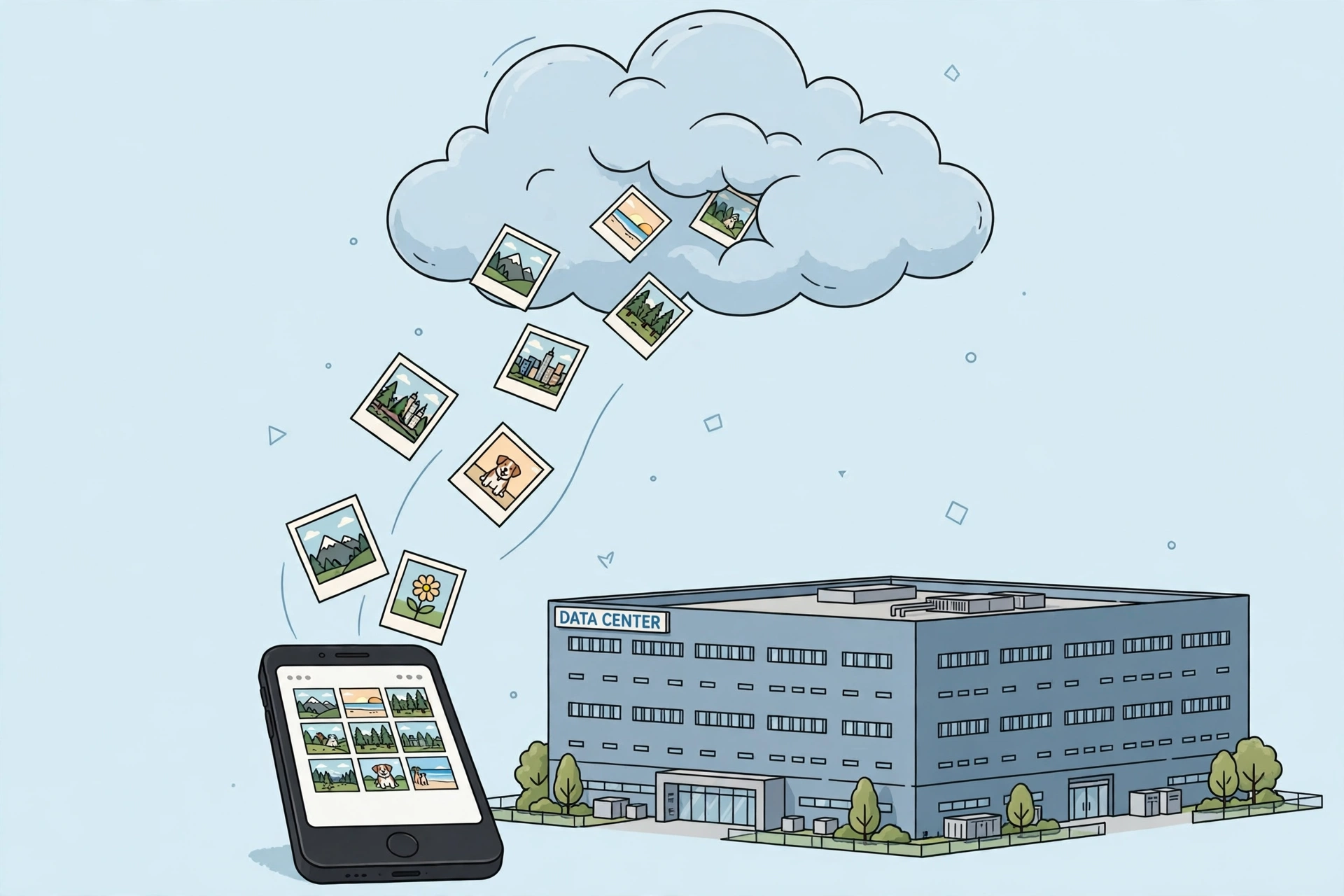
- When you upload a photo, it travels over the internet to one of those buildings.
- Your photo is saved on hard drives there, and often copied to more than one place for safety.
- You can see the photo again from any device, because the cloud sends it back to you over the internet.
- Your photos stay private if your account is protected, but you should still use a strong password.
The Cloud Is Not in the Sky
When people say “the cloud,” it sounds soft and light, like a white cloud in the sky. But your photos do not float in the sky. The cloud is a real place, on the ground, in big buildings full of computers. Those buildings are called data centres.
Think of a data centre as a huge library for computers. Inside, there are rows and rows of tall metal racks. Each rack holds many computers and hard drives. The rooms are kept cool, because computers make a lot of heat. There are guards, locks, backup power, and fire safety systems. Your photo, when you upload it, goes to a computer in one of these buildings.
Companies like Google, Apple, Amazon, and Microsoft own many data centres around the world. When you use Google Photos, iCloud, OneDrive, or Amazon Photos, you are using their data centres. You do not need to know where the building is. You just open the app, and your photos appear, as if by magic. But behind that magic is a very real, very physical system.
In this article, we will follow your photo on its journey, in very simple words. You will learn how a photo leaves your phone, how it travels, where it is stored, why it is copied, and how it comes back to you. You will also learn about privacy, safety, and what happens if you delete a photo from the cloud.
Step One: From Your Phone to the Internet
It starts when you take a photo. Your phone saves the photo as a file. A file is just data: numbers that describe the colours of each tiny dot, or pixel, in the picture. A normal phone photo may be a few million pixels, and the file may be 2 to 5 megabytes in size. That is small for a computer, but it still needs to travel.
When you turn on cloud backup, or when you press “upload,” your phone connects to the internet. It may use Wi-Fi at home, or mobile data when you are out. Your phone breaks the photo file into small pieces, called packets. Each packet is like a small envelope with part of the photo inside, plus an address label that says where it should go.
Those packets travel through cables under the ground, under the sea, and through mobile towers in the air. They hop from one router to another, like a letter passing through many post offices, until they reach the data centre. There, the packets are put back together, in the right order, to make the full photo again. If a packet is lost on the way, the system asks for it again. That is why uploads sometimes pause and restart, but usually finish correctly.
This journey is very fast. On good Wi-Fi, a photo can upload in a second or two. On slow mobile data, it may take longer. If you upload many photos at once, like after a holiday, it can take minutes or hours. Most phones upload in the background, while you do other things, so you do not have to wait.
Step Two: Inside the Data Centre
When your photo arrives at the data centre, it is saved on a hard drive. A hard drive is a storage device that keeps data even when the power is off. Modern data centres use many hard drives, and also faster storage called SSDs, which have no moving parts. Your photo may be saved on one drive first, then copied to others.
Why copy? For safety. If one hard drive breaks, your photo would be lost if there was only one copy. So cloud companies make several copies. They may keep two or three copies in the same building, and one or two copies in a different building, far away. That way, even if one building has a fire, a flood, or a power cut, your photo still exists somewhere else.
Your photo is also given a name and a place in a huge index. Think of a library catalogue. The librarian does not remember every book by heart. She looks it up in the catalogue. In the same way, the cloud system keeps a record: this photo belongs to this user, it was taken on this date, it is stored on these drives. When you ask for the photo later, the system looks it up and finds it fast, even among billions of photos.
Some cloud services also make smaller versions of your photo. They make a tiny thumbnail for the gallery view, and a medium version for quick viewing on a phone. The full, high-quality version is kept too, for when you want to download or print it. That is why a photo can appear instantly in your gallery, even before the full version has downloaded. You are seeing a small preview first.

Step Three: How You See It Again
When you open your photos app on another device, say a tablet or a laptop, your device asks the cloud, “Show me my photos.” The cloud checks who you are, by your account and password, then sends back the list of your photos. It sends small thumbnails first, so the gallery loads fast. When you tap a photo, it sends the full version.
This is why you can take a photo on your phone in the morning, and see it on your laptop in the evening, without a cable. The photo never travelled directly from phone to laptop. It went phone to cloud, then cloud to laptop. The cloud is the middle step that connects all your devices.
If you have no internet, you cannot fetch a new photo from the cloud, because the cloud is far away. But many apps keep recent photos on your device too, so you can still see them offline. When you get internet again, the app syncs, which means it checks what is new and updates both sides, so phone and cloud match again.
Syncing can be confusing. If you delete a photo on your phone, and sync is on, it may also delete from the cloud. If you delete from the cloud website, it may also delete from your phone. That is because sync tries to keep everything the same. We will talk more about deleting later in this article.
Is the Cloud Safe? Privacy and Security
Many people ask: are my photos safe in the cloud? Can other people see them? The short answer is: they are private by default, but you must protect your account. Cloud companies use strong security. Your photos are stored with your account, and only someone signed in as you can see them. Employees do not normally look at your photos, and systems are built to stop unauthorised access.
But security also depends on you. If someone knows your password, they can sign in as you and see your photos. That is why a strong password matters, and why two-factor authentication is so important. Two-factor authentication means that even if someone knows your password, they also need a code from your phone to sign in. Turn it on for your cloud account, and for your email account too, because email is often used to reset passwords.
Photos are also encrypted in many cases. Encryption is like putting your photo in a locked box, where only the right key can open it. When your photo travels over the internet, it is usually encrypted, so people in the middle cannot read it. When it is stored, many companies also encrypt it. That adds a strong layer of protection.
Still, no system is perfect. Data breaches have happened in the past, where hackers stole user data from companies. That is rare for large cloud companies, but it is not impossible. The best protection is to be careful about what you upload, use strong passwords, turn on two-factor authentication, and do not share your account with others. For very private photos, some people keep them only on their own device, not in the cloud, and back them up on a hard drive at home instead.
What Happens When You Delete a Photo?
Deleting is not always as simple as it looks. When you delete a photo from your phone, it often goes to a trash or bin first, for 30 days. During those 30 days, you can restore it. After 30 days, it is deleted for good from that device. But if sync is on, deleting on your phone may also move the cloud copy to trash, and after 30 days it may be gone from the cloud too.
When you delete from the cloud website, the same trash rule often applies. The photo sits in trash for a while, then is removed. But even after that, copies in backup systems may remain for a short time, before they are also cleaned up. Cloud companies keep backups to protect against accidents, so a “deleted” photo may not vanish instantly from every backup. Over time, usually weeks, those backups are also updated and the photo is truly gone.
This is similar to what happens when you delete a file on your own device. What happens when you delete a file is not always simple, because data can remain until it is overwritten. In the cloud, the same idea applies, on a much larger scale, with many copies.
If you want to keep a photo forever, do not rely on trash. Download it, save it on your computer or an external hard drive, and keep that drive safe. If you want a photo gone, delete it from all devices, empty the trash, and check the cloud website too, to be sure it is gone everywhere.
How Much Does Cloud Storage Cost?
Most cloud services give you a small amount of free storage. Google gives 15 gigabytes shared across Gmail, Drive, and Photos. Apple gives 5 gigabytes for iCloud. That sounds like a lot, but photos and videos fill it fast. A few thousand photos can fill 15 gigabytes, especially if you shoot in high quality or 4K video.
When you run out of free space, you can pay a small monthly fee for more. Prices vary by country and company, but a common plan is 100 gigabytes for a few dollars a month, or 200 gigabytes or 2 terabytes for more. Many families share a plan, so everyone gets more space for less money per person.
You can also save space by choosing settings. Many apps let you upload in “high quality” instead of “original quality.” High quality compresses the photo a little, making the file smaller, but still good for viewing on a phone or sharing online. Original quality keeps every detail, which is better for printing large photos, but uses more space. For most people, high quality is enough, and it saves a lot of space and money.
If you do not want to pay, you can also back up photos to your own hard drive. Buy an external hard drive, copy your photos to it once a month, and keep it in a safe place. That is free after the first cost, and it gives you full control. But if the hard drive breaks, or your house floods, you could lose everything. That is why many people use both: cloud for easy access, and a hard drive at home for an extra copy.
The Cloud and the Environment
Data centres use a lot of electricity. They run computers day and night, and they need cooling systems to stop those computers from overheating. That electricity has an environmental cost, especially if it comes from coal or gas. Large cloud companies know this, and many are trying to use renewable energy, like wind and solar, to power their data centres. Some also reuse waste heat to warm nearby buildings.
Your own photos use only a tiny amount of that electricity. One photo is very small compared to a whole data centre. But billions of people uploading billions of photos adds up. That is why companies try to make data centres more efficient, with better cooling, better chips, and smarter software that turns off unused computers.
You can help a little too. Delete photos you do not need, like blurry shots, duplicates, and accidental screenshots. That saves storage, saves energy, and makes your gallery cleaner. It is a small step, but if millions of people do it, it adds up.
What If the Cloud Company Closes?
People sometimes worry: what if Google or Apple closes my cloud account? Large companies are very unlikely to disappear overnight, but accounts can be closed if you break the rules, or if you do not sign in for a very long time. Some services delete data after long inactivity. That is why it is important to keep your own copy of important photos, not just a cloud copy.
A good rule is the 3-2-1 rule, used by many experts. Keep three copies of important files, on two different types of storage, with one copy offsite, far from home. For photos, that could be: one copy on your phone, one copy in the cloud, and one copy on a hard drive at a family member’s house, or in a safe place. That way, no single failure can wipe out your memories.
Your photos are memories: birthdays, holidays, family, friends. They are worth protecting with more than one copy. The cloud is a wonderful tool for that, because it is automatic and easy. But it should be part of a plan, not the only plan.
Shared Albums and Links: How Sharing Works in the Cloud
Sharing is one of the best parts of cloud photos, and it is also easy to misunderstand. When you share a photo from the cloud, you are not usually sending the photo file itself to the other person. Instead, you are sending a link, or giving permission, so the other person can view the photo that is already in the cloud. That is why sharing is fast, even for large videos. The file stays in one place, and the link is just a key to view it.
There are two common kinds of sharing. One is sharing with a specific person, by their email or account. Only that person can open the link, because the cloud checks who they are. The other is sharing with “anyone with the link.” That is less private, because anyone who gets the link can open it, even if you did not mean to share it with them. Be careful with “anyone with the link” for private photos. If you share a link in a group chat, anyone in that chat can forward it further.
Shared albums work in a similar way. You create an album, invite family or friends, and they can add their own photos to it. Everyone in the album can see all the photos in it, and sometimes they can also download them. That is wonderful for a holiday or a wedding, where many people took photos and want to share them in one place. But remember to check who is in the album before you add a very private photo. Once someone downloads a photo, you cannot control what they do with that copy, even if you later remove them from the album.
If you stop sharing, the link usually stops working, or the person loses access to the album. But if they already downloaded the photo, their copy remains on their device. That is normal for any sharing, digital or physical. Once you give someone a photo, they have it. So share thoughtfully, especially with large groups or public links.
For work or school, sharing links are very useful. A teacher can share a folder of class photos with parents, without emailing hundreds of large files. A team can share product photos in one folder, and everyone always sees the latest version. The cloud keeps one true copy, and everyone views that copy, so there is no confusion about which version is newest. That is a big advantage over sending files back and forth by email, where old versions pile up.

How to Organise Cloud Photos So You Can Find Them Later
A cloud library can grow to tens of thousands of photos very fast. Without organisation, finding one old photo can feel impossible. Luckily, cloud apps help you in several ways, automatically and by hand.
First, photos are sorted by date. When you open your gallery, you see the newest first, and you can scroll back in time. Many apps also let you search by date, like “June 2023,” or by place, if location was turned on when you took the photo. Some apps can even recognise faces, animals, and objects, so you can search for “dog” or “beach” and find matching photos. That search happens on the company’s servers, using the photo data, and it is one reason cloud apps feel so smart.
Second, you can make your own albums. Make an album for each holiday, each child, each year, or each project. Put the best photos in albums, and leave the rest in the main library. That way, your best memories are easy to find, even if your main library is huge. You can also add a short description or a favourite star to important photos, so they stand out.
Third, clean up regularly. Once a month, spend ten minutes deleting blurry photos, duplicates, and screenshots you no longer need. It is a small habit, but it keeps your library tidy, saves storage space, and makes searching faster. It also makes backup faster, because there are fewer files to copy.
Finally, remember that organisation in the cloud does not replace a backup. An album is not a backup. If you delete a photo from the main library, it may also disappear from the album. A true backup is a separate copy, in a separate place, like a hard drive at home. Keep albums for finding photos, and backups for protecting them. Both matter, but they do different jobs.
Frequently Asked Questions
1. Where do my photos actually go when I upload them?
They go to a data centre, a big building full of computers owned by the cloud company. Your photo is saved on hard drives there, often in several copies, in more than one building, for safety.
2. Can other people see my cloud photos?
No, not normally. Your photos are tied to your account, and only someone signed in as you can see them. Protect your account with a strong password and two-factor authentication to keep it that way.
3. What happens if I delete a photo from the cloud?
It usually goes to trash for about 30 days, where you can restore it. After that, it is deleted from your main storage, and backups are cleaned up over time. To be sure it is gone, empty the trash and check all devices.
4. Do I need to pay for cloud storage?
You get a small amount free, usually 5 to 15 gigabytes. If you take many photos and videos, you will likely need to pay a small monthly fee for more space, or back up to your own hard drive instead.
5. Is the cloud the same as the internet?
No. The internet is the network that connects computers. The cloud is a service that runs on that network, using large computers in data centres to store your files and send them back to you when you ask.
Closing
So, where do your photos go when you upload them to the cloud? They do not go to the sky. They travel over the internet, in small packets, to a big building full of computers, called a data centre. There, they are saved on hard drives, copied for safety, and indexed so you can find them again. When you open your photos app on another device, the cloud sends the photo back to you, and it appears as if it was always there.
That system is why cloud photos feel like magic. You take a photo on your phone, and it appears on your tablet, your laptop, and your family member’s shared album, without cables. Behind the magic is a very real system of cables, computers, cooling, and careful copies.
Use it well. Protect your account, keep your own copy of the most important photos, and delete the ones you do not need. Then the cloud can do what it does best: keep your memories safe, and bring them back to you, whenever and wherever you want them.